 NexGPU-算力租赁,GPU服务器,GPU云算力,AI服务器租用-新闻博客
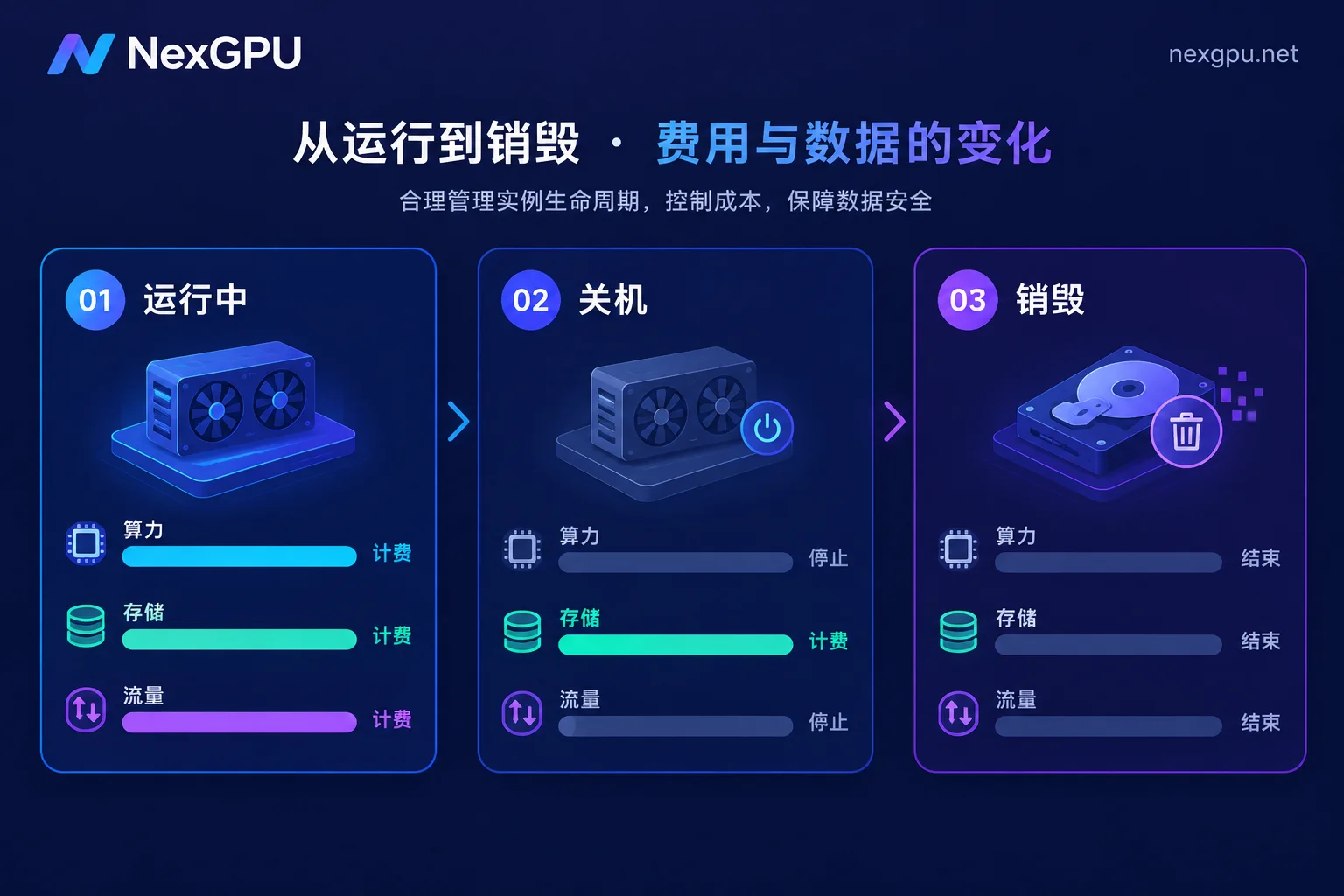
First, the answer: storage fees have nothing to do with whether you’re running a task. They’re calculated based on how much disk you’ve allocated × how long you keep it, roughly “disk capacity (GB) × storage unit price × retention duration.” As long as the disk is attached, even if the instance is shut down and the GPU hasn’t spun for an hour, the meter keeps running. To bring it to zero, you must destroy the instance along with its disks.
The three items on the bill and when each is charged
NexGPU’s bill has only three items: compute, storage, and traffic. Their start and stop points differ, which is the foundation for understanding the whole bill:
- Compute: Charged only while the instance is running, priced per hour and metered per second. Stops when powered off.
- Storage: Charged by disk capacity and retention duration. Runs when powered on, continues when powered off, until destruction.
- Traffic: Charged by actual data transferred; no transfer, no charge.
So “save money by shutting down” only saves on the compute item, not everything. Also, when you place an order on NexGPU, the unit price is locked until destruction, meaning the storage unit price you see at order time is the price for the entire period—no need to worry about mid-term changes.
Why you’re still charged after shutdown
When you shut down, the platform reclaims the GPU, vCPU, and memory to allocate to others, so compute resources stop being billed. But your system disk and data disk must retain the environment, weights, and training data inside, so they continue to exclusively occupy backend storage blocks—that space can’t be freed for others, so fees naturally continue. This is standard practice across mainstream cloud GPU platforms, not a special rule of any one provider.
A one-line distinction between two actions:
- Stop: Keeps data, stops compute, storage continues to be billed.
- Destroy/Terminate: Clears disks and data together, all billing stops.
Here’s a common promotion mistake: some platforms charge not only for storage but also for public fixed bandwidth or elastic IPs during shutdown; some platforms include a free quota for the system disk. These depend on the specific provider’s billing page—don’t apply one provider’s rules to another. On NexGPU, the bill is just three items, traffic is pay-as-you-go, and other details are subject to the billing documentation.
Rough calculation: three numbers are enough
All you need is disk capacity, storage unit price, and total duration until destruction.
First number: capacity. Note that storage is billed by allocated capacity, not by how much you actually write. If you allocate 200GB and use only 30GB, you’re still billed for 200GB. If it’s your first time renting a GPU and you have no reference, add up these: actual size of weight files × number of models to store + dataset size + size of a single checkpoint × number of copies you plan to keep + a dozen or so GB for the system and dependencies. After one run, go into the machine and use du -sh * to check real usage of each directory, so next time you can set capacity accurately instead of guessing high.
Second number: unit price. Check the current nodes and unit prices directly on the pricing page. Configurations vary by GPU type and node, so we won’t list numbers here.
Third number: duration. This is the biggest budget killer: calculate the duration from creation to destruction, not “how many hours the task ran.” If a task runs for 3 hours but the disk sits there for 3 weeks, the storage cost can easily exceed compute. Leaving it unattended long-term can even push your account into arrears.
Choose your approach based on your situation
This round of tasks is done; you won’t run again for a week or two. Move the results to external storage, then destroy the instance. This is the most direct way to avoid idle storage.
You’ll continue tomorrow. Keeping the disk is usually easier, but it’s worth comparing: the time and traffic to rebuild the environment and re-download weights versus the storage cost for those dozen to dozens of hours. If you can spin up the environment from an image template in minutes and the weights are publicly downloadable, destruction is often more cost-effective.
You’ll run repeatedly, but with several days between runs. A compromise: first slim down the disk, keeping only what can’t be recomputed, delete everything that can be re-downloaded, then decide whether to shrink or destroy. Next time, rebuild from a template—environment consistency is actually better. For how to choose images, see How to Choose Cloud GPU Image Templates.
Wrap-up order before destruction
Destruction is irreversible; data is wiped with the disk, so don’t reverse the order:
- Classify. Split the disk contents into two piles: irreproducible (training checkpoints, generated results, your modified configs and scripts, cleaned data) and re-downloadable (public weights, public datasets, pip dependencies).
- Move only the first pile. No need to transfer the second pile—wastes time and traffic.
- Pick a transfer route: download locally, upload to object storage, or push to a private Hugging Face repo / Git repo (use LFS for large files). For trade-offs and command details of the three routes, see How to Save Data from a Rented GPU Instance.
- Verify, don’t just check transfer completion. Compare file sizes or hashes, and ideally open and load once to confirm usability.
- Destroy, then go back to the instance list to confirm no machines are left.
- Check the bill the next day to confirm the storage item is indeed zero.
As for whether data can be recovered after destruction, the answer is basically no. For boundaries, see Can Data Be Recovered After GPU Instance Destruction?.
Where you’re most likely to overspend
- Stopped but not destroyed. The most common case, and the reason for this article. For details, see Are GPU Instances Charged After Shutdown?.
- Disk allocated too large at order time. Billed by allocated capacity; overallocating won’t reduce the charge just because you didn’t fill it.
- Multiple instances for one task, only one destroyed. After destruction, always scan the list again.
- Downloaded the same weights or dataset multiple times, scattered in different directories without cleanup.
- Derivatives like snapshots and custom images. If the platform bills storage separately, they’re in the storage item—subject to official terms.
Two things you should ask directly
Two policies directly affect your cost-saving plan but vary with platform configuration—don’t copy claims from elsewhere:
- Whether the system disk includes a free capacity quota;
- Whether snapshot export or automatic cold backup on shutdown is supported, which determines whether “keep the disk” or “backup then destroy” is more suitable.
These are subject to NexGPU’s billing documentation. If the page isn’t clear, ask Telegram support (bilingual Chinese/English)—more reliable than guessing a number for planning.
Just remember the simplest rule of thumb: Compute follows power-on; storage follows destruction. Set capacity accurately before ordering, and backup before destroying after tasks. Do these two things, and storage fees won’t become the part of the bill you can’t understand.



Comments(0)