 NexGPU-算力租赁,GPU服务器,GPU云算力,AI服务器租用-新闻博客
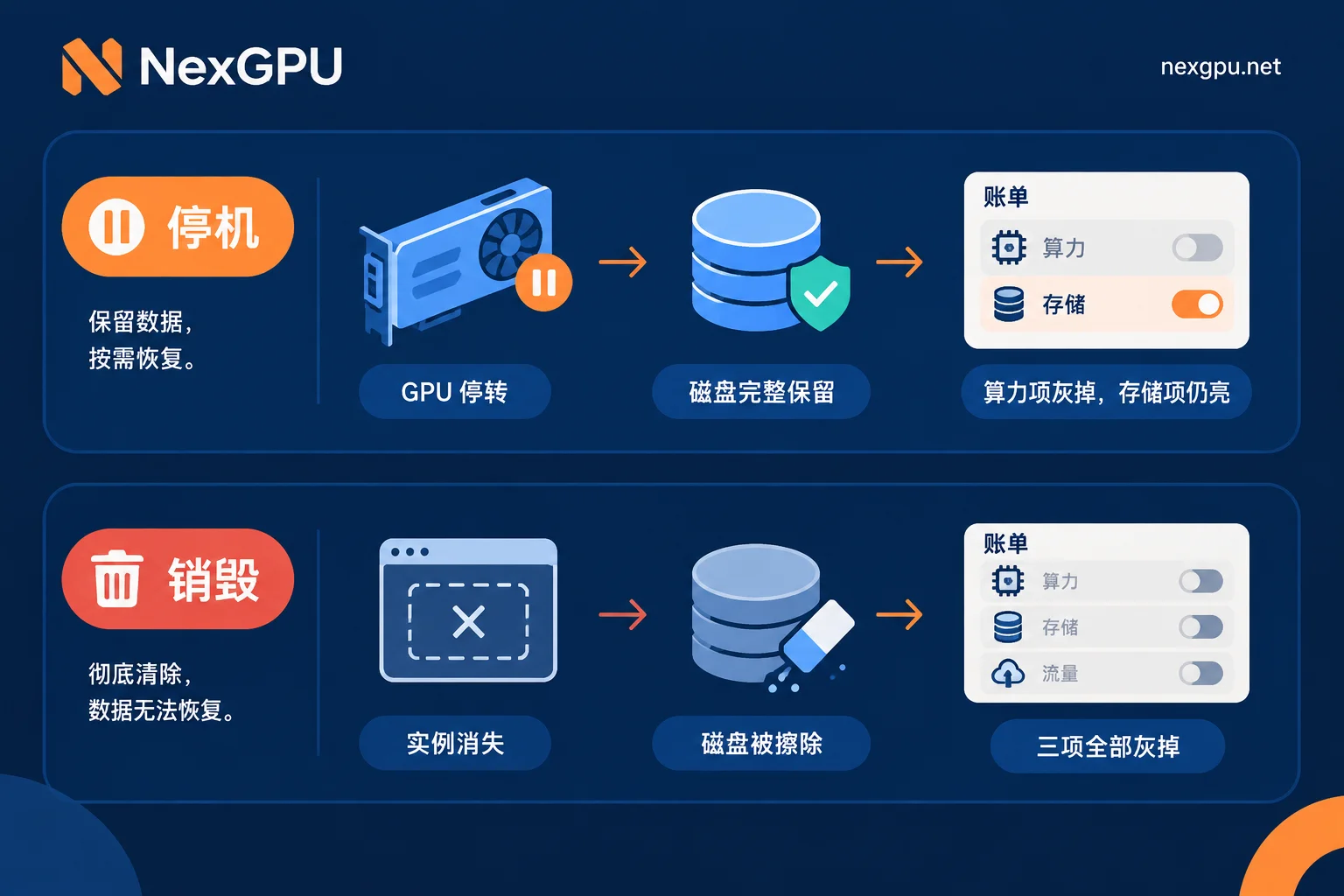
Let’s get straight to the conclusion: Destroying (Terminate / Destroy) will lose your data, and it cannot be recovered. The destroy action reclaims and erases the instance along with its system disk and any data disks marked for deletion with the instance. The instance can no longer be started, and all model weights, checkpoints, generated results, and modified configuration files that were not exported are gone. There is no recycle bin on the platform to retrieve them.
Stopping (Stop) does not lose data. Stopping merely halts the GPU and CPU operations, releasing compute resources. The disk remains attached to the instance, and the environment, dependencies, and data are preserved as-is. They will still be there when you start it again. The cost is that disk space remains occupied, so storage fees continue to be charged during the stop period.
Translate these two sentences into billing language: At NexGPU, the bill only has three items: compute, storage, and traffic. Stopping stops the compute item, but storage is still charged; only destroying stops all three items. This is also a pitfall many people encounter when renting a GPU for the first time—they think clicking shutdown means no more charges, but a few days later they find the bill still accumulating.
What Must Be Moved Out Before Destroying
Classifying by "rebuild cost" is more practical than classifying by folders.
Must be moved out:
- LoRA / adapter weights produced by fine-tuning, merged model files
- Checkpoints from training (especially if the task is not finished and you plan to continue on another machine)
- Generated images, videos, audio outputs, and ComfyUI workflow JSON files
- Your own training scripts, inference service code, and configuration files with modified parameters
- The cleaned, labeled, and split version of your dataset (original public datasets are not needed; they can be re-downloaded)
- Database files, vector store indexes (if you run RAG)
- Environment lists and startup command records exported from
requirements.txt,pip freeze
Do not need to move out:
- Original base models pulled from Hugging Face / ModelScope—they can be re-pulled, and they take up a lot of space
- conda / pip package caches, CUDA-related system components
- The part of the environment already included in the image (you can restore it by selecting the same image template on another machine)
The criterion is straightforward: If you can get it again by re-downloading, no need to move; if it only exists on this machine, you must move it.
Three Migration Routes, Choose Based on What You Have
Route 1: Object Storage (First Choice for Large Files)
For model weights, checkpoints, and batch-generated results, object storage is the most reliable. Install rclone or the corresponding CLI tool on the instance, configure the S3 / OSS compatible endpoint and keys, then sync the directory:
rclone copy /workspace/outputs remote:my-bucket/outputs -PIncluding -P shows progress. Don't close the terminal during large file transfers, or run it directly in tmux / screen to avoid interruption from SSH disconnection.
Route 2: Code Repository (Scripts and Configurations)
Push training scripts, inference service code, and workflow files to a Git repository. These files are small but most easily overlooked—many people remember to save models but forget to save the startup parameters that took two days to get working. Make it a habit: commit each time you get it working, don't wait until just before destruction.
Route 3: Model Community (Weights)
Fine-tuned weights can be pushed directly to your private repository using huggingface-cli upload or ModelScope's CLI. The advantage is that you can pull them back with a single command on a new machine next time, without configuring object storage keys again.
Always verify after transferring, don't destroy immediately after uploading. Do at least two things: confirm the file list and sizes match on the storage side (compare rclone ls remote:my-bucket/outputs with local du -sh), and check the checksum of key model files. If possible, pull them back and load them on another cheap machine to confirm the files are not corrupted—truncated weight file transfers are very common and only error out at load time.
Regarding "can I attach a persistent disk independent of the instance, so the disk remains after destroying the instance"—practices vary greatly across platforms, and even within the same platform, different instance types may differ. Before ordering, confirm in the console whether the disk attached to your machine is deleted with the instance. If unsure, ask customer service directly; don't apply other providers' rules. NexGPU's billing details can be found in the billing explanation on the About page. For specific machine types, you can also confirm directly with Telegram customer service.
For more detailed backup operations and directory planning, see this article: How to Save Data on a Rented GPU Instance: Stop for Disk Retention, Destroy for Cleanup, and Three Migration Routes.
So Should You Stop or Destroy?
This is not a question of "which is better," but of how soon you will come back to use it.
When to prefer stopping:
- You will continue running tomorrow or the day after, the environment is complex (compiled operators, installed many specific dependency versions), and rebuilding takes half a day
- The task is phased, and you need to wait for data, annotations, or someone to confirm results in between
- You grabbed a machine type that is hard to rent again, or the unit price you locked in at the time may not be available now—at NexGPU, the unit price at order time is locked until destruction; after destruction, renting again means placing a new order at the new price
When to prefer destroying:
- The task is finished, and all outputs have been exported and verified
- It was just a trial run to verify feasibility, and the environment can be restored with one click from an image template
- You won't touch it for the next week or two, and accumulating storage fees is not cost-effective
- You need to switch to a larger or smaller GPU next, and this machine won't be kept anyway
A rough calculation makes it clear: storage fee × number of idle days compared to time cost of rebuilding the environment + traffic for re-downloading data. For idle periods of a few hours to a day or two, stopping is usually more convenient; for idle periods of a week or more, destroying after exporting is often more cost-effective. If your environment is started with one click from an image template and has little customization, the rebuild cost is very low, so there's even less reason to keep a stopped instance slowly accruing storage fees—How to Choose a Cloud GPU Image Template explains how to make the environment as "one-click rebuildable" as possible.
There is also an often-overlooked intermediate state: a long task runs halfway, the machine has problems, or you must switch machines. At this point, what really saves you is not stopping, but the automatic checkpoint saving + automatic upload already written into the training script. Refer to Cloud GPU Long Task Interruption Recovery and Checkpoint Settings to configure save intervals and external transfer actions into the training loop, which is far more reliable than after-the-fact remediation.
The Operation Sequence at the Moment of Destruction
Fix the sequence to avoid accidents:
- Stop running training/inference processes, confirm no process is still writing files to disk
- Sync outputs to object storage / Git / model repository according to the checklist above
- Verify file count, size, and checksums on the storage side; for key weights, try loading once
- Archive environment information: transfer
pip freeze > requirements.txttogether, and record startup commands in the README - Confirm there are no disks still attached to the instance that you need but that will not be retained with the instance
- Execute destruction, return to the console to confirm the instance status has changed to destroyed, and that all three billing items for this machine have zeroed out
Step 6 deserves a separate look. Some people click destroy and close the page, only to find later that the operation didn't take effect or that another instance they forgot about is still incurring charges. Refreshing the instance list after destruction is less hassle than reconciling the bill later.
A Few Easily Confused Points
"Why am I still being charged after shutting down?"—Stopping stops compute, but the disk is still occupied, so storage fees continue. To stop completely, you must destroy.
"The data disk should be independent, right?"—Not necessarily. Disks created with the instance and marked for deletion with the instance are deleted together upon destruction. Confirm clearly when ordering; don't assume.
"I destroyed on another cloud and could still recover"—Lifecycle designs vary across platforms; some have recycle protection, some have separate volume retention policies. Don't directly apply one platform's experience to another. Rely on the documentation and customer service of the platform you are currently using.
"Destroy first, then find a way to recover"—There is no such step. Destruction is irreversible; the only insurance is to move things away before destroying.
Once you've decided what GPU to rent for this task, how long to run it, and whether to keep or destroy it afterward, you can go to the pricing and available nodes page to choose a machine type and place an order—remember the unit price is locked until you destroy it, which will affect your judgment on "keep or clean up."


Comments(0)