 NexGPU-算力租赁,GPU服务器,GPU云算力,AI服务器租用-新闻博客
With the rapid iteration of open-source video generation models such as Wan (Tongyi Wanxiang), HunyuanVideo (Tencent Hunyuan), LTX-Video, and CogVideoX, along with ComfyUI's native support for FP8/GGUF quantization, Tiled VAE, and step distillation, tutorials claiming "8GB or even 6GB VRAM can run AI video generation" are frequently seen in the community.
However, after actually getting a video workflow running, many creators and developers realize: there is a huge gap in time cost and quality compromise between "can run" and "can be used for real work." Running a 5-second 720P video on a local 12GB GPU with CPU Offload often takes over ten minutes; once you want to add ControlNet for image control, extend the frame count, or train a custom motion/character LoRA with dozens of clips, the local machine immediately runs into OOM (out-of-memory) or endless fan noise and waiting.
Choosing the right AI video generation GPU is not about blindly chasing the most expensive card, but about calculating the VRAM requirements of video diffusion models (mostly DiT architecture) and splitting "workflow debugging, high-quality batch rendering, model fine-tuning, and concurrent deployment" into different GPU tiers rented on demand.
1. Why "Can Run" Does Not Equal "Can Work"? First, Calculate the Four VRAM Costs of Video Models
Compared to static image generation like Stable Diffusion, AI video generation adds a "time dimension (frame count)." Under the DiT (Diffusion Transformer) architecture, increasing resolution and frame count cause the number of tokens in the 3D latent space to expand exponentially.
Whether running text-to-video (T2V) or image-to-video (I2V), a GPU's VRAM is mainly divided into the following four parts:
- Backbone Diffusion Model Weights (DiT Backbone): For example, 1.3B lightweight models or 14B flagship models. At full precision (BF16/FP16), the weights of a 14B model alone require about 28GB of VRAM; even with FP8 or GGUF (e.g., Q4_K_M) quantization, it still takes 8GB to 15GB.
- Text / Vision Encoder: Video models often pair with large encoders like T5-XXL, LLaMA, or multimodal vision-language models, which alone can consume 5GB to 10GB of VRAM.
- Spatiotemporal Activations & Attention Computation: This is where video generation most easily "blows up VRAM." At 720P or even 1080P resolution combined with 49 frames, 81 frames, or longer sequences, the intermediate activations from self-attention mechanisms skyrocket with sequence length.
- 3D VAE Decoding Peak: Many encounter OOM at 99% of sampling steps; the culprit is the 3D VAE decoding that converts latent features back to pixel video in the final step. Without enabling tiled decoding (Tiling), the VRAM peak in the last few seconds can spike by over 30%.
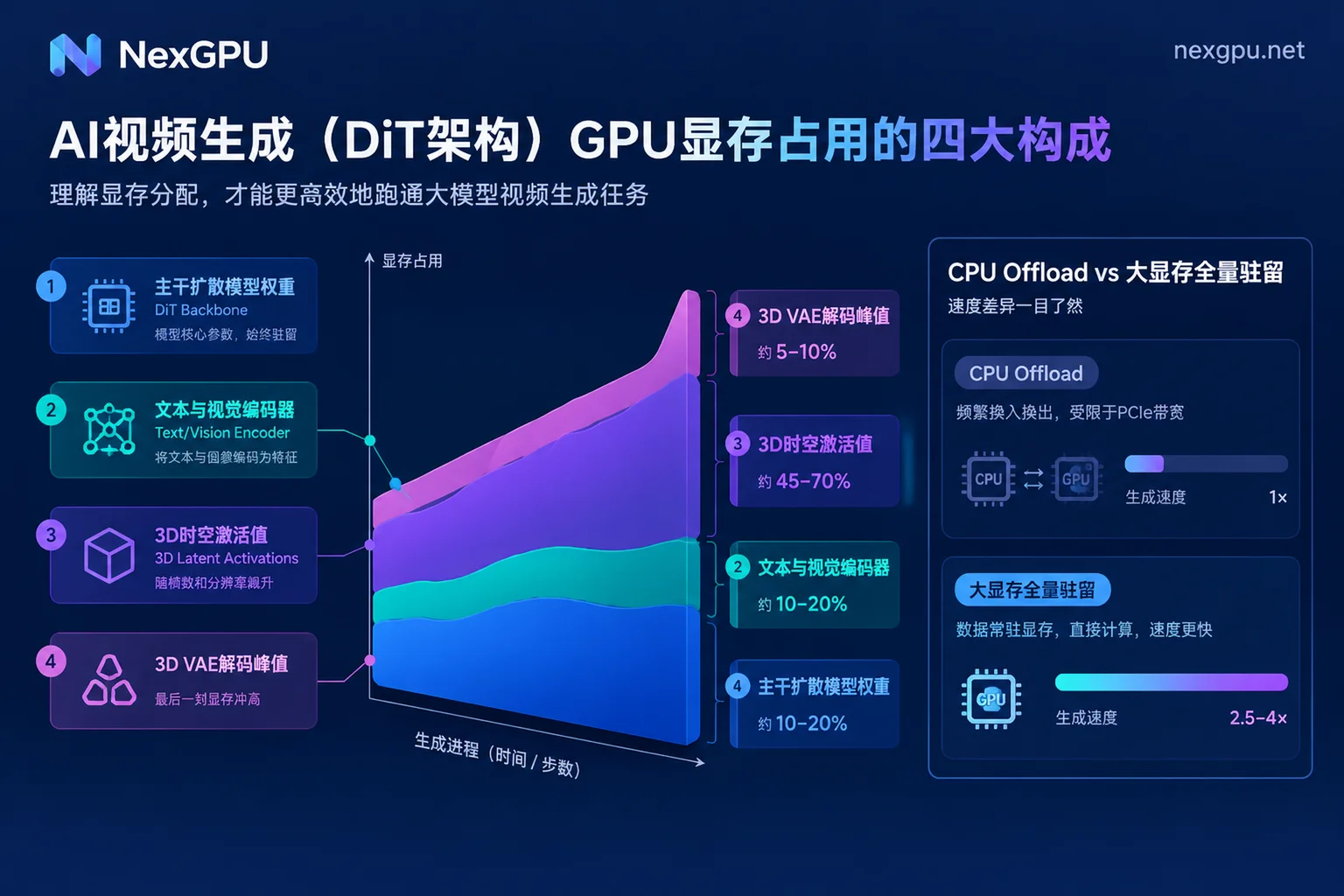
The community's "8GB/12GB VRAM savior solutions" essentially trade deep GGUF/FP8 quantization (sacrificing minor image details and motion coherence) + CPU Offload (moving unused encoders and model layers to system memory, sacrificing PCIe transfer time) + forced tiled decoding. If you're just occasionally experimenting, this approach is totally feasible; but for high-frequency creation or commercial delivery, renting cloud GPUs with ample VRAM to keep the full model resident in VRAM often yields several times the rendering efficiency.
2. VRAM Comparison of Mainstream Open-Source Video Generation Models and Task Scenarios
Different model sizes and precision strategies have vastly different hardware appetites. We can divide current mainstream open-source video models and tasks into four tiers (Note: for specific versions and exact VRAM thresholds after quantization, please refer to the real-time updated model selection guide on the official website):
| Task Scenario and Representative Models | Common Precision and Running Strategy | VRAM Requirement Range | Applicable GPU Tier Reference | Typical Experience and Limitations |
|---|---|---|---|---|
| Lightweight Models / Deep Quantization for Testing (e.g., Wan 1.3B, LTX-Video, GGUF Q4 quantized versions of Hunyuan/Wan 14B) | GGUF / FP8 + CPU Offload + Tiled VAE | 8GB ~ 16GB | Entry-level GPUs or local PCs | Can run 480P/720P short videos; model layers frequently swap between memory and VRAM, resulting in longer per-video time |
| Mainstream Models FP8 Efficient Rendering (e.g., Wan 14B FP8, HunyuanVideo FP8, CogVideoX-5B) | FP8 quantization / step distillation + light offloading or full VRAM residency | 24GB ~ 32GB | RTX 3090 / RTX 4090 / RTX 5090 | Sweet spot for creators; with TeaCache/step distillation, can reliably produce 720P videos in minutes |
| Full-Precision Native Quality / Complex Workflows (14B-level BF16 original + ControlNet + upscaling + video LoRA fine-tuning) | BF16 / FP16 full precision residency, most slow offloading disabled | 48GB ~ 80GB | Single 48GB professional card / A100 / H100 | Avoids quality degradation and stiff motion from quantization; supports single-card video LoRA training or long-frame direct output |
| Real-time Concurrent Inference / Full Fine-tuning (xDiT multi-card sequence parallelism, studio batch pipelines, full-parameter fine-tuning) | USP sequence parallelism / FSDP / DeepSpeed | 80GB × N (multi-card nodes) | A100 / H100 / H200 / B200 multi-card servers | Compresses single video generation to tens of seconds, or supports distributed training on massive video datasets |
If you're unsure when consumer-grade GPUs become insufficient for your task, the most intuitive criterion is: when you have to carefully avoid OOM every time you add a control node in ComfyUI, or when the wait time for a single 5-second video disrupts your creative flow, it's time to switch to a high-VRAM cloud GPU.
3. GPU Selection by Task Stage: Spend Your Budget Where It Matters
In NexGPU's GPU compute marketplace, consumer-grade GPUs (RTX 3090, 4090, 5090, etc.) and data center GPUs (A100, H100, H200, B200, etc.) are priced separately, billed by the second and charged by the hour. Creators and R&D teams don't need to use the same card for all processes.
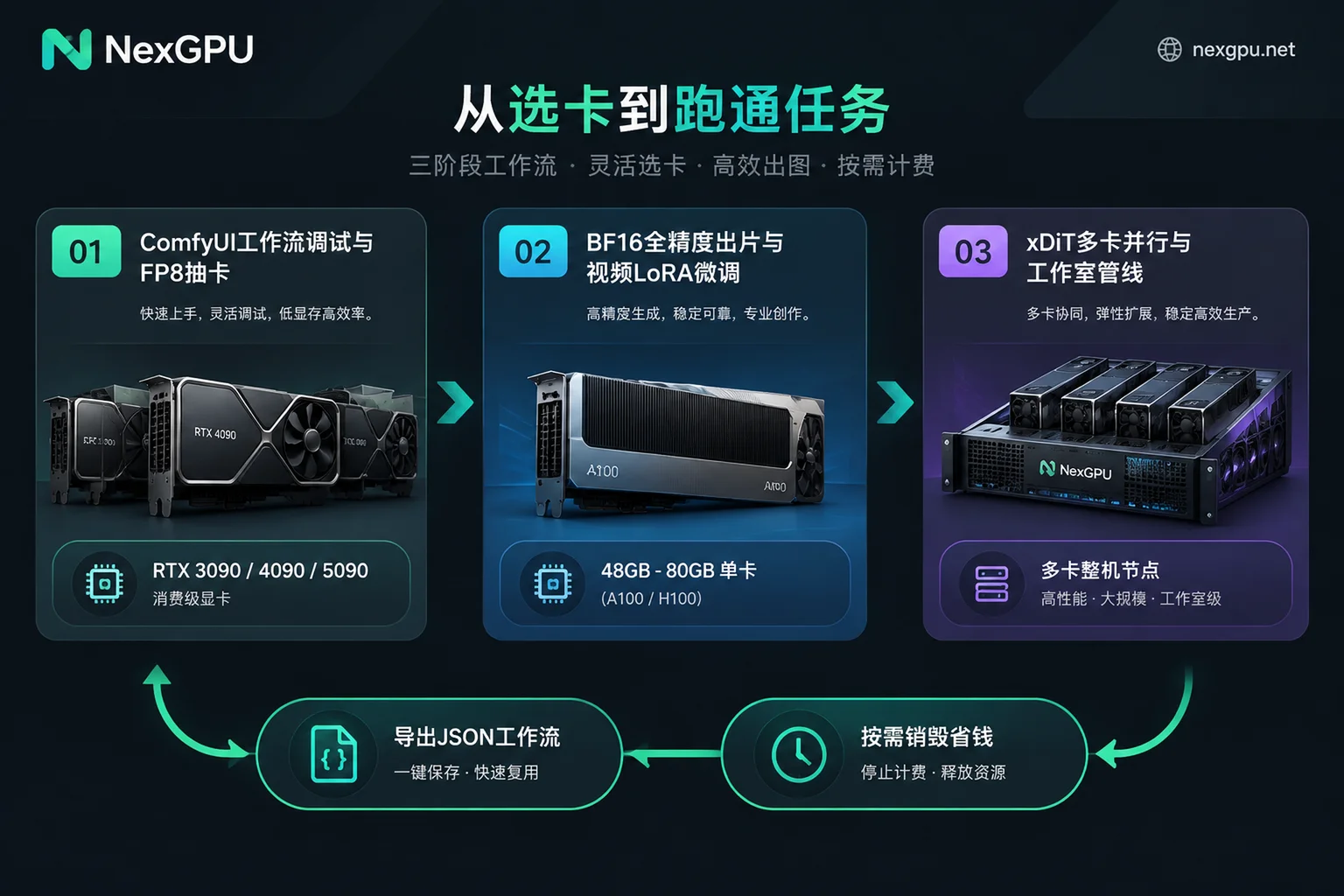
1. Build Workflows, Run Nodes, and Test Generations: Consumer 24GB/32GB GPUs
When first encountering a new open-source video model, most time is actually spent on tuning prompts, testing first/last frame control, aligning lip sync, or debugging ComfyUI custom nodes.
- Selection Strategy: Rent a single RTX 3090, RTX 4090, or RTX 5090.
- Why It Fits: 24GB or more VRAM is enough to hold FP8 weights of mainstream 14B video models. With the powerful Tensor Core computing of new-generation GPUs, you can fully utilize FP8 matrix acceleration and RTX video super-resolution. Start with step-distilled models (e.g., 8 or 12 steps) to quickly lock in composition and random seeds, with very low cost per trial.
2. Full-Precision Original Rendering and Video LoRA Training: 48GB~80GB High-VRAM Single Card
After finalizing the composition, if you need commercial-grade quality (avoiding color banding or facial distortion from quantization) or need to train a custom video LoRA for a specific IP character or camera style:
- Selection Strategy: Filter for single-card instances with 48GB to 80GB VRAM (e.g., A100, H100; see how large a model can run on 48GB VRAM).
- Why It Fits: Video LoRA fine-tuning not only stores model weights but also optimizer states (e.g., Muon or AdamW) and backpropagation gradients in VRAM. Even with gradient checkpointing, 24GB VRAM is often insufficient (for more details, read how to choose a GPU for large model fine-tuning). Renting an 80GB-level data center card allows you to fit the original BF16 model and encoder entirely in VRAM; after training and obtaining the
.safetensorsweights, you can destroy the instance and pay only for the training hours.
3. Integrating with 3D Rendering Pipelines or Team Multi-Card Concurrency: Multi-Card Nodes and Scenario Combinations
Many professional studios now use hybrid pipelines of "Blender 3D rough scene rendering + AI video generation for style transfer."
- Selection Strategy: In NexGPU's scenario solutions page, there are not only VRAM and image recommendations for AI image and video, but also support for graphics rendering (Blender, V-Ray, segmented parallel rendering across multiple instances). The number of instances you can open is unlimited (only limited by account balance); you can open multiple consumer-grade instances for parallel Blender segmented rendering, and one high-VRAM instance for ComfyUI video re-rendering.
- Multi-Card Acceleration: If an enterprise R&D team is deploying low-latency video generation services based on xDiT (USP unified sequence parallelism) or using FSDP/DeepSpeed for large-scale fine-tuning, you can filter for A100, H100, H200 multi-card server nodes by "minimum card count" in the marketplace (order amount = per-card price × card count). Teams needing RDMA high-speed interconnect, private networks, or monthly reservations can directly contact sales to customize an enterprise solution.
4. Practical Workflow for Running AI Video Generation on NexGPU
Many creators worry about cumbersome cloud deployment, slow downloads of tens of GB of video model weights, or accidentally forgetting to shut down and causing bill overruns. With NexGPU's platform mechanisms, you can efficiently operate in the following four steps:
Step 1: Quick Registration Without Verification, Choose Image First Then Filter Machines
NexGPU supports direct registration with email, no real-name verification or quota application required (see quick start guide). After registration, you can view real-time prices of all machines without binding a payment method; top-ups support Alipay and USDT (TRC20).
When selecting a GPU, it's recommended to "choose environment first, then filter machines":
- Go to image templates and directly select the Image & Video (pre-installed ComfyUI, AUTOMATIC1111, supporting SDXL, FLUX, and video diffusion models) template. Drivers, CUDA, and common dependencies are pre-configured, ready to use out of the box. If your video training code requires specific CUDA or PyTorch versions, you can also fill in your own Docker image and customize the startup command.
- After selecting the environment, filter machines. Machines with insufficient VRAM will be automatically flagged by the system with reasons, helping you avoid the pitfall of "starting up only to find the model doesn't fit." You can also filter by region, reliability, and bandwidth (for pulling tens of GB of video weights, prioritize high-bandwidth nodes) (see how to choose a GPU).
Step 2: Direct Access to Workflows and Batch Transfer of Assets
After the instance starts, the platform provides three convenient instance connection methods:
- Web Terminal and Jupyter: Open a root terminal or Jupyter with token in the browser with one click, suitable for running model download scripts directly.
- Public IP + Port Mapping: Each instance comes with a public IP, default port mapping, and backup ports. You can directly open the cloud ComfyUI interface in your local browser for node orchestration.
- SSH Direct Connection and Visual Panel: SSH uses public IP plus port for direct connection, without a jump server, making it convenient to use SCP/SFTP to upload reference images or pull back rendered
.mp4videos at high speed. If you're not used to the command line, you can also one-click install the aaPanel visual management panel to intuitively manage model files and view processes in the browser.
Step 3: Watch the Three Bills: Compute, Storage, and Traffic; Use Shutdown and Destroy Wisely
The biggest characteristic of video generation is large disk usage—a 14B model's full-precision weights plus encoder and VAE often occupy 40GB to 60GB of disk space.
In NexGPU's billing rules, the bill is very transparent, with only three items: compute, storage, and traffic. Each machine's compute unit price and disk unit price are listed separately at order time (the unit price at order time is locked until the instance is destroyed; no activation fee, port fee, or minimum rental period):
- Use "Shutdown" for breaks or multi-day debugging: When you've debugged a complex ComfyUI video workflow and downloaded tens of GB of weights, and don't want to pay GPU compute fees while resting at night, you can click Shutdown in instance management. After shutdown, compute fees stop immediately, and disk and data are fully preserved; you can restart at any time. Note, however, that storage fees (per GB/month) continue to accrue during shutdown (see are GPU instances charged when shut down).
- Use "Destroy" after completing a stage: Because instances cannot be dynamically expanded after creation, and the platform does not provide automatic data backup (exclusive container; the platform does not read or back up disk contents), when you finish this batch of video rendering, simply download the generated video outputs, fine-tuned LoRA weights, and ComfyUI workflow
.jsonfiles back to your local machine, then enter the instance ID to confirm Destroy. After destruction, the disk is immediately released, and all billing stops completely. When you start a new project next time, just spin up a new instance and import the few-KB.jsonworkflow to instantly restore your creative pipeline.
Conclusion
AI video generation has moved from early "toy-level animations" to a controllable, high-definition, audio-video synchronized productivity stage. Faced with video diffusion models with billions of parameters, there's no need to force local GPUs to run lengthy extreme offloading, nor to blindly spend heavily on buying high-end hardware (see AI server self-purchase hosting vs. renting GPU).
Now you can visit NexGPU's model selection guide to check the VRAM thresholds and deployment steps for mainstream video generation models, or go to the GPU price and compute marketplace to pick a high-bandwidth RTX 4090 / 5090 with the ComfyUI pre-installed image and start up, using flexible hourly-billed compute to quickly turn your ideas into high-definition videos.