 NexGPU-算力租赁,GPU服务器,GPU云算力,AI服务器租用-新闻博客
In 2026's visual creation and post-production, the meaning of GPU cloud rendering is undergoing a visible transformation.
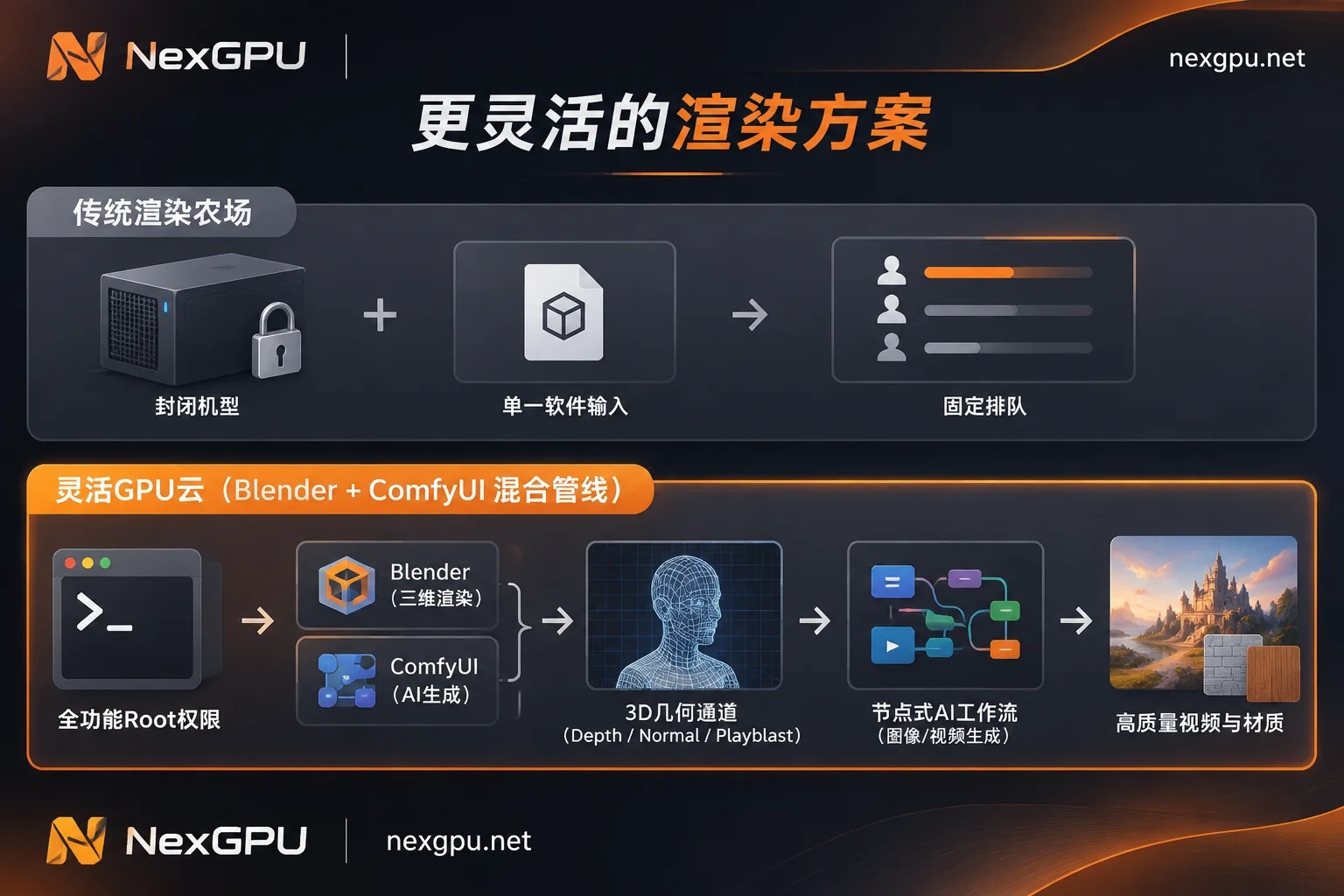
In the past, creators packaged and uploaded project files to the cloud, often just to render out ray-traced sequences from Blender Cycles, V-Ray, or Octane. But now, more and more individual creators and studios are upgrading their workflows to a hybrid pipeline of "3D geometry control + AI neural rendering enhancement": build precise camera trajectories, gray-box models, and basic lighting in Blender, export depth maps, normal maps, or playblasts, then seamlessly connect to ComfyUI to call FLUX, video diffusion models, or 3D material generation models to directly generate cinematic-quality final frames, or reverse-generate seamless PBR textures and 360° HDRI environment lighting back to Blender.
When rendering is no longer just a single graphics computation but a composite task of "traditional ray tracing + large model inference", how should the compute foundation be chosen? This article will break down how to efficiently run this modern rendering pipeline in the cloud from three dimensions: hardware bottlenecks, environment configuration, and cost accounting.
I. Why is the "3D + AI" hybrid workflow bursting local workstations?
In the traditional single-software rendering era, a GPU with 24GB VRAM plus large memory was enough for most small to medium stills and animations. But in the mainstream hybrid rendering pipeline of 2026, local hardware often faces a squeeze from both ends:
- VRAM collisions from running two engines simultaneously
On one hand, Blender viewport preview and Cycles OptiX rendering need to persistently load geometry, high-resolution textures, and ray-traced BVH structures into VRAM; on the other hand, ComfyUI's video generation models, ControlNet sequence control nodes, and PBR extraction models can easily consume 16GB~24GB or even more VRAM. When the two run alternately or in parallel on the same local machine, they can easily trigger out-of-memory (OOM) crashes. - The "black box" limitations of traditional SaaS render farms
If you turn to traditional package-upload cloud render farms to alleviate local pressure, creators quickly find that such platforms usually only support fixed DCC software versions and whitelisted plugins. It's hard to freely deploy custom Python environments, pull multi-gigabyte open-source diffusion model weights, or have Blender communicate with ComfyUI in real time via local ports on render farm nodes. - Creative stagnation during local rendering
Even if the local GPU can barely run, once you enter sequence rendering of hundreds of frames or AI video repainting, the local workstation is completely occupied, and creators cannot simultaneously modify assets or test new shots.
For this reason, more and more creators are bypassing closed traditional farms and directly renting independent GPU cloud instances with root access and hourly billing. If you previously mainly handled traditional ray tracing tasks, you can first refer to our previous article "How to Choose GPU Cloud Rendering Solutions and GPUs: A Practical Guide from Traditional Render Farms to Hourly GPU Rental with Segmented Parallelism" to understand the basic segmented parallelism logic; for the "3D + AI" composite pipeline, we need to go further in GPU selection and environment setup.
II. How to choose GPUs for hybrid rendering pipelines? From RTX 4090, 5090 to high-VRAM compute cards
In the NexGPU GPU marketplace, each row corresponds to a real rentable physical machine, with consumer-grade and data center-grade GPUs priced separately. Creators can choose on demand based on the proportion of "ray tracing" and "AI generation" in their pipeline (for real-time unit prices and available nodes of specific models, please refer to the official website):
1. Ray tracing and regular AI texture/single-frame enhancement: prefer consumer flagships (RTX 4090 / RTX 5090)
Blender Cycles relies heavily on NVIDIA GPUs' RT Cores and OptiX acceleration, so consumer RTX GPUs far outperform data center compute cards at the same price point in pure rendering cost-effectiveness.
- RTX 4090: Suitable for Cycles rendering of medium-scale scenes, and generating seamless PBR textures (Albedo, Normal, Roughness) and running lightweight ControlNet repainting in ComfyUI.
- RTX 5090: With larger VRAM capacity and new-generation RT Cores performance, it is currently the main card for both "high-poly Blender scene rendering" and "ComfyUI HD video/image workflows" on a single card, greatly reducing wait times caused by frequent model offloading between VRAM and RAM.
For a detailed comparison of these two generations of consumer GPUs in general scenarios, you can also read "How to Rent an RTX 4090 Cloud Server: Capability Boundaries of 24GB VRAM, GPU Selection Pitfalls, and a Guide to Smooth Scaling from Single to Multiple GPUs".
2. Full-precision AI video repainting and ultra-large scenes: filter A100 / H100 / H200 by VRAM
If the core of your workflow is feeding Blender-exported gray-box animations (Playblast) into ComfyUI for long-sequence, high-resolution stylized repainting using full-precision video diffusion models, or loading unquantized giant 3D generation models, consumer GPUs' VRAM may be insufficient.
In this case, you can filter high-VRAM data center cards such as A100, H100, or H200 by VRAM size in the marketplace (for detailed VRAM accounting for AI video stages, see "Farewell to VRAM Anxiety: A Guide to 'Elastic Compute' Freedom for AI Video Generation in 2026").
GPU selection pitfall tip: When creating an instance on NexGPU, if you follow the process of "first select environment template then filter machines", machines with insufficient VRAM will be automatically marked with reasons, avoiding the situation where the workflow cannot be launched after starting the instance due to insufficient VRAM. For more filtering details, see How to Choose GPU documentation.
III. Hands-on implementation: Building a Blender + ComfyUI cloud rendering pipeline on NexGPU
Unlike platforms with locked permissions, NexGPU provides exclusive container instances with full root access, public IP, and port mapping. You can choose the following two architectures to implement hybrid rendering based on project scale:
Approach A: Single-instance integrated deployment (suitable for asset generation, material extraction, and single-shot iteration)
When you need to generate PBR materials, 3D meshes, or HDRI environment lighting in ComfyUI and immediately perform headless render tests in Blender on the same machine, a single high-VRAM instance is most convenient:
- Start with a prebuilt image: Go to the Image Template Library and directly select the ComfyUI template under the Image & Video category (pre-installed drivers, CUDA, and common dependencies, supporting SDXL, FLUX, and video diffusion models), or fill in your own Docker image when code locks a specific CUDA version (supports public or private repositories, custom startup commands and environment variables).
- Install command-line Blender and commercial renderers: After logging into the instance via the web terminal in the browser or direct SSH (direct public IP plus port, no jump server), directly download and extract the Linux version of Blender via command line. If you use commercial renderers like V-Ray, Octane, or Redshift, you can also install them on the instance and configure your own commercial software licenses (Note: platform images default to command-line environments without remote desktop; if you need GUI, you can install it yourself).
- Visual file management and service port mapping: Each instance comes with a public IP and port mapping, and reserves a set of spare ports for user services. You can directly access the cloud ComfyUI interface in your local browser via the mapped port; meanwhile, you can one-click install the aaPanel visual management panel (occupies some disk space) in the instance to directly upload
.blendproject files, manage output sequence frame directories, monitor processes, or set scheduled rendering tasks in the browser.
Approach B: Multi-instance segmented parallelism + AI post-processing (suitable for animated sequences with urgent delivery)
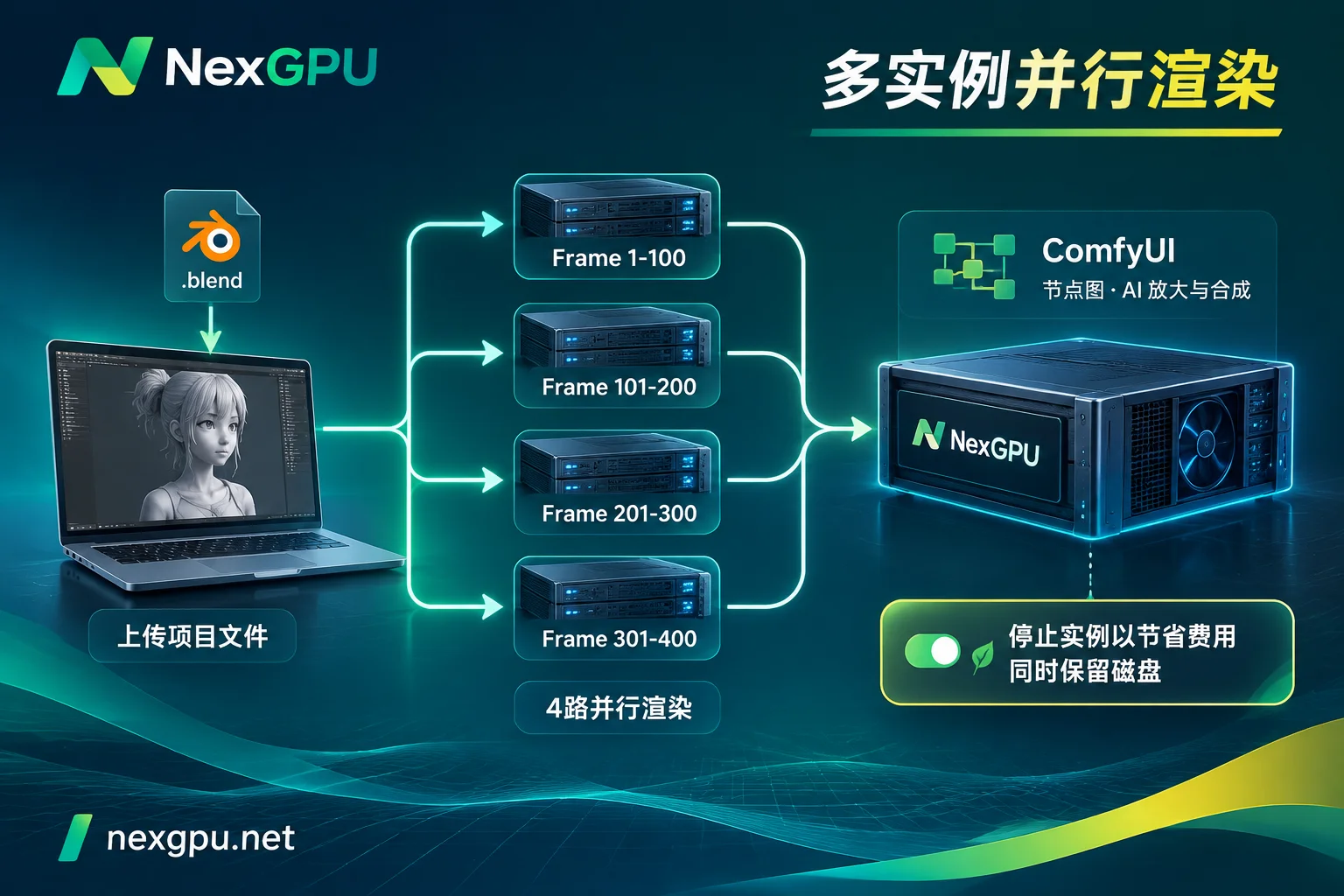
When facing a deadline for hundreds or thousands of frames of animation delivery, single-card serial rendering is obviously too slow. On NexGPU, there is no limit to the number of instances you can start simultaneously (only constrained by account balance). You can combine the solution in the Graphics Rendering Scenario Practices page to split rendering into a high-concurrency pipeline:
- Step 1: Multi-machine segmented parallel rendering of Blender passes/sequences
Start multiple RTX 4090 or RTX 5090 instances simultaneously (or directly filter multi-GPU nodes rented as whole machines by "minimum GPU count" in the marketplace; order amount = single GPU price × GPU count). For example, start 5 instances and use Blender CLI command-line-s(start frame) and-e(end frame) parameters to have the first instance render frames 1~200, the second render 201~400, etc., quickly rendering the Beauty pass, Depth pass, and Normal pass in parallel. - Step 2: Aggregate to an AI instance for batch compositing and upscaling
Aggregate the pass sequences rendered by each node onto a high-VRAM instance equipped with ComfyUI, and use batch repainting or upscaling workflows to complete final visual enhancement (for ComfyUI large model and node management tips, refer to "ComfyUI Cloud GPU Environment Setup and Cost Control: A Practical Guide from Custom Node Freedom and 100GB Model Management to Stop-and-Keep-Disk").
IV. Cloud cost accounting for 3D creators: How to save money with "stop and keep disk"?
The 3D and AI hybrid project has a notable characteristic: asset sizes are extremely large, but high-load rendering is pulsed. A set of project files plus high-definition texture libraries, baked caches (Alembic/VDB), and various large model weights for ComfyUI can easily occupy hundreds of GB of disk space. If you destroy the machine after each rendering and re-upload tens of GB of assets next time, the time and traffic costs are unbearable; but if you keep it running all the time, the compute cost of idle GPUs is a huge waste.
Under NexGPU's transparent billing system, creators can precisely control costs through itemized billing mechanisms:
- Clear separation of compute, storage, and traffic
When selecting a machine, each machine in the list separately shows the compute unit price and disk unit price; the unit price at order time is locked until the instance is destroyed, with no minimum consumption, setup fees, port fees, or image license fees, and no minimum rental duration. Per-second compute metering + stop to retain data
- Intensive rendering period: The instance enters "running" state and starts per-second metering and hourly billing. You can view GPU load and cost details in real time on the Instance Management Details page.
- Local model modification and review period: When a round of cloud rendering is complete and you need to download the final frames back locally to confirm with clients or modify Blender animation curves, simply click Stop in the console. After stopping, compute fees stop immediately, and only storage fees are charged per GB/month (Note: storage fees start from instance creation when pulling the image, continue during stop, and only stop upon destruction). Your Blender environment, hundreds of GB of model weights, and project files remain intact on disk, and can be restarted with one click next time.
- Safety buffer and data cleanup precautions
The platform uses a prepaid mechanism and sends warning emails when the balance is low; if the balance runs out during overnight rendering, the system will automatically stop (not destroy) first, and only automatically destroy after the negative balance exceeds a set duration. Recharging in the meantime will restore it, preventing instant loss of rendering results.
Special reminder: Instances are exclusive containers; the platform does not read or back up disk contents, and disk expansion is not supported after instance creation. Therefore, before starting, estimate the total size of textures, sequence frames, and AI models to leave enough disk space; before destroying the instance (requires entering the instance ID for confirmation) after the entire project is completely finished, be sure to download the final frames and project files back locally via SSH or the panel, because the destroy operation immediately releases the disk and is irreversible.
Conclusion
In 2026, whether an independent 3D artist uses Blender + ComfyUI to explore a personal style short film, or a visual studio uses multi-machine parallelism to meet commercial project delivery deadlines, cloud compute should not become a shackle on creativity.
Say goodbye to cumbersome real-name verification and quota applications. Now you can register on NexGPU with just an email (see Quick Start Guide), browse real-time prices of global nodes without binding a payment method, and flexibly recharge via Alipay and USDT (TRC20). If your animation, film, or design team has long-term needs for reserved instances, monthly/annual subscriptions, dedicated compute pools, or corporate payment and invoicing, you are also welcome to contact sales for customized enterprise-level rendering compute solutions.